USB Troubleshooting
USB Driver Troubleshooting
If connecting to our products via a USB cable, the PC must have a USB driver correctly installed. The WHQL certified USB driver files are included on the supplied installation CD, and will be installed automatically with many of the software installer packages we provide. When using our products with custom software or if trouble arises with connecting to an instrument you may follow the steps below to confirm the installation or install the driver manually.If a connection can not be established via a USB cable, the problem is either with the product itself or the installation of the USB driver. Use the following steps to check the status of the USB driver in Windows.
Note, the following procedure and screen shots apply to a PC running Windows 7.
- Open the Control Panel window (click Start then Control Panel)
- If in Category view: Click System and Security
- Click on the Device Manager icon under the System section.
- The Device Manager window provides information on the various devices connected to or are part of the PC. All devices are grouped by category. The category of interested is Universal Serial Bus controllers.
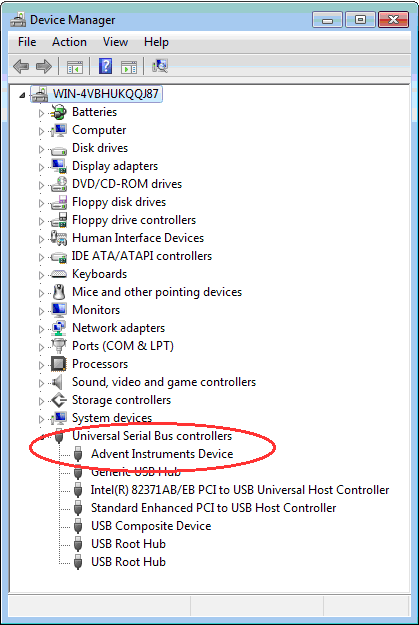
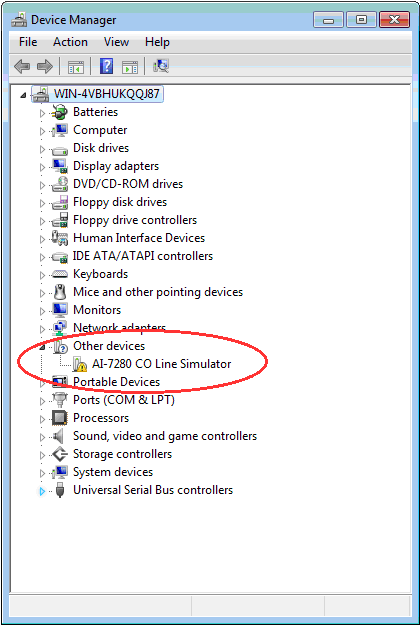
If the driver has not been correctly installed but the connected product is working correctly, then the product name should be listed. In this example, the AI-7280 Central Office Simulator does not have a correctly installed driver but the device is recognized by Windows.
To show more information, either double click on the listed item, or right click and select Properties from the popup menu.
The USB driver may be installed manually by using the add remove hardware wizard or via the self extracting installer package. The following figures show the step by step procedure for installing the USB drivers with this installer package.
1. Download the USB installer package
| USB Driver (AI-5120, AI-5620, AI-7280) Program for installing the USB driver on Windows XP, Vista, and 7 operating systems. Note, the driver supports both the 32 bit and 64 bit versions of Windows Vista and Windows 7. | 2.8.2 | 1.3 MB | Download  |

2. Run the USB installer package
Once the file is located on the target computer double click on the file to start the self extraction and the following window will be displayed.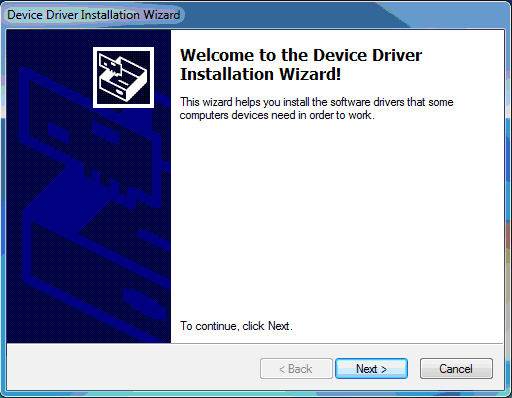
3. Click on the Next button to install the driver files
Windows will now copy the driver files from the installer package to the target computer.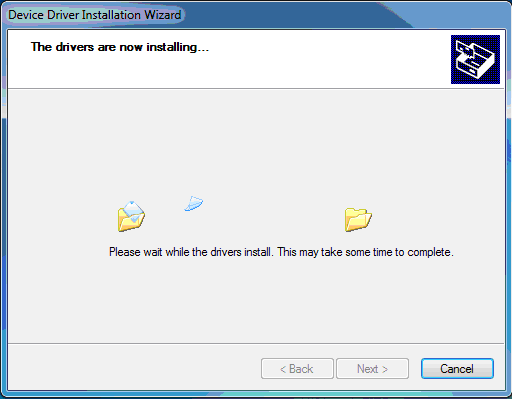
4. Confirm the driver installed correctly
Once Windows has completed the installation of the driver files the following window will display the results. Confirm that there are two check marks beside both of the listed driver names.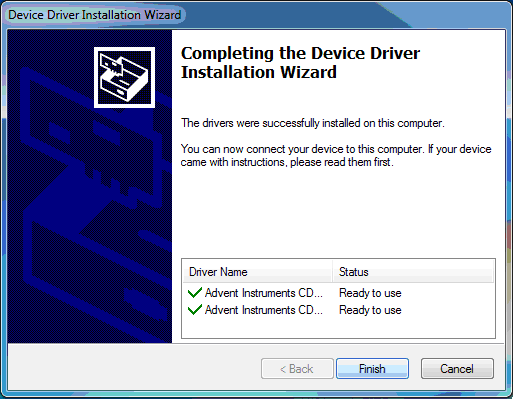
5. Click on the Finish button to exit the installer
The driver is now installed and you may connect the instrument to the PC via a USB cable.6. Connect the instrument to the PC via a USB cable
The following brief popup bubble will appear indicating Windows has detected the new instrument.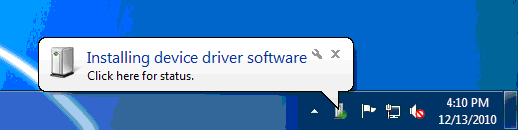
Then a short time later the following popup will appear and the instrument is recognized by Windows and the PC.

If the above procedure does not resolve problems with the USB connection, please contact us for further assistance.
